


Telegram is an instant messaging service app based in the cloud, which has over time become very popular. Among its great features are end-to-end encryption, self-destruct messages, and a very simple interface, so it is even suitable for the largest companies. In this article, we will be focusing on the web version of Telegram and how you can make the most out of it.
What is Telegram Web?
Telegram is just an instant messaging mobile cloud-based application that allows people to stay in touch with friends, family, and colleagues at their pleasure. It was launched and founded in the year 2013 by Pavel Durov. Telegram runs on iOS, Android, Windows Phone, Windows NT, Mac, and Linux, as well as having web-based versions.
Telegram provides a whole set of services: Secret Chats with a self-destruct time, Group Chats, Voice Calls, File Sharing, and many more. Also, it allows you to create a channel and a bot. The channel is created for information transfer, from news sources to customer support or marketing. The bot can do, well, basically anything you can think of.
One of the greatest peculiarities is the fact that Telegram emphasizes a high level of privacy and security for the user. The application uses symmetric and asymmetric encryption that ensures data and messages are safe from access by any other people. It also allows the sending party to establish “secret chats” that never remain saved on the Telegram servers and are only accessible to the sending and receiving parties.
Telegram has widely been used, including even by end-users, businesses, and organizations, for different reasons involved in personal and confidential communications. This does have a very intuitive interface and does offer some great customization capabilities, which are really good and dynamic about this app.
Read Also: https://betacompression.com/wechat-top-professional-messaging-app-china/
What is Telegram Web X?
Telegram X is a kind of experimental version of the messenger with many innovations and a different style of interface. Telegram X Web is a web version of Telegram X, and upon use, users will be able to access Telegram X from the web browser.
First, Telegram X was a separate application, while now it comes, so to say, rolled up in the main Telegram application and adds part of its functionality as an alternative to the standard application. However, Telegram X exists as an app in its own right, and its web version can also be found on the Telegram X website.
Does not bring very much new in the way of features but certainly adds plenty of them, including a more responsive, faster, smoother interface; faster loading times; improved animations; smoother scrolling; and multiple modern features like accounts, night mode, and an improved media player design.
You can access it from the Telegram X website by logging in with your Telegram account. After successful login, users should be able to message, make calls, send files to people from their contact list, and create groups and channels, among other things.
Great for those who want a more advanced, configurable version of Telegram and prefer to run it from the browser. However, it should be noted that Telegram X has a rather experimental status and can change or disappear in the future.
Key Features of Telegram Web:
- No Installation Required: Access Telegram directly through your browser.
- Sync Across Devices: Messages sync automatically with the Telegram app on other devices.
- Secure Messaging: Uses end-to-end encryption for private chats.
- Supports Media Sharing: Send photos, videos, and files with ease.
- Accessible Anywhere: Use it on any device with a browser and internet connection.
Difference Between Telegram and Telegram X
Telegram and Telegram X are both official apps developed by Telegram, but they differ in features, performance, and design.
| Aspect | Telegram | Telegram X |
|---|---|---|
| Performance | Uses a traditional codebase, reliable | Faster, smoother with experimental features |
| Design | Standard, simple interface | Modern design with fluid animations |
| Features | Full feature set | Includes experimental features |
| Speed | Optimized for stability | Optimized for speed and responsiveness |
| Battery Usage | Higher battery consumption | Improved battery efficiency |
| Purpose | Best for general use | Ideal for users wanting cutting-edge features |
Which Should You Choose?
- Telegram: Recommended for users who prioritize stability and a complete feature set.
- Telegram X: Ideal for those who want faster performance and are open to testing new features.
Read Also: https://betacompression.com/b2b-marketing-strategies/
How to Use Telegram Web in Browser?
Telegram has a web interface; it is called Telegram Web. To use the browser version of Telegram, you must be an active user of the Telegram account. There are two ways to log in to this account.
Of course, for this, you have to be logged in with an activated Telegram account. If you don’t have one yet, you can create it here by downloading the Telegram app to your phone or desktop. Once the account is activated, one can access it by logging in through web.telegram.org, where they put the phone and the verification code. They can also opt to remember the account by ticking the “Keep me signed in” option.
Method 1: By Scanning the QR Code
 Step 1: Open your web browser from the computer and go to the Telegram website. Install the extension and then launch it.
Step 2: Tap the “Settings” button at the bottom of the Telegram app when it is open on your phone.
Step 3 This time, click on the “Devices” option and then select “Link Desktop Device.” Finally, sign in to your account and scan the QR Code displayed on your PC.
Method 2: Using the Phone Number
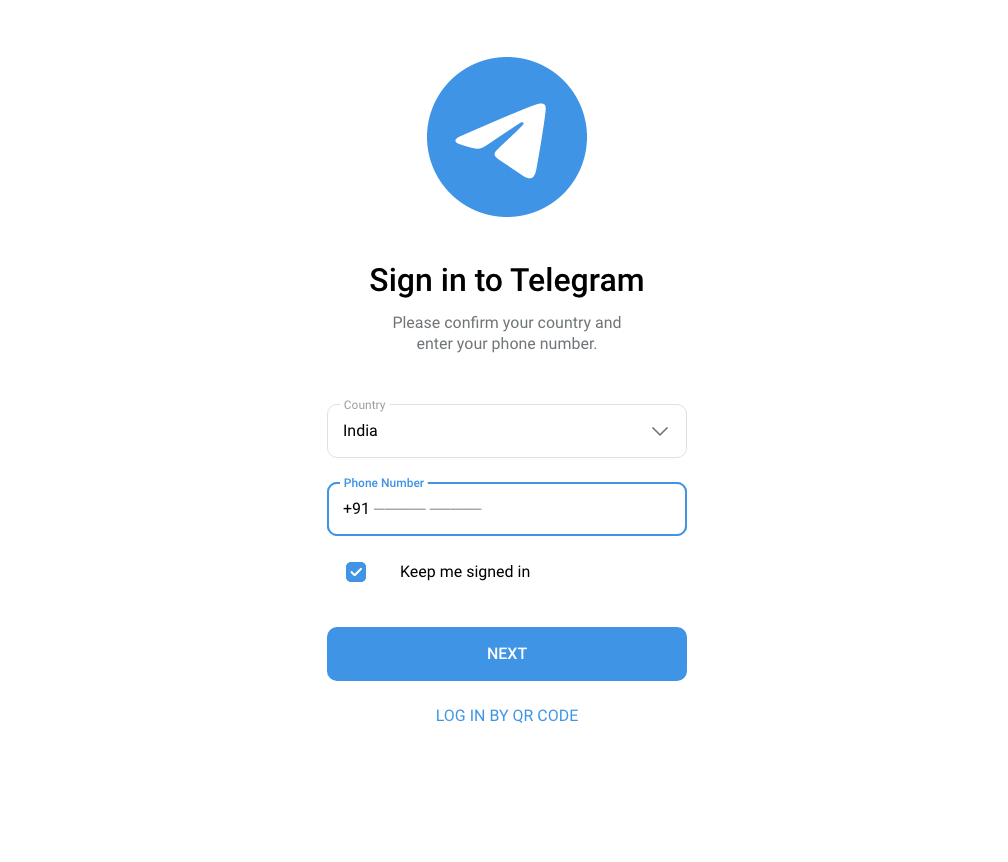 Step 1: Open a browser on your PC and go to the Telegram website.
Step 2: You will find an option that states “Log in by Phone Number” at the bottom of the page. Select your country via the drop-down option, enter your phone number, and click “Next.”
Step 3: Verify your phone number on the pop-up confirmation message, then click “OK” if it’s accurate.
Step 4: Telegram will now send the phone a text as the code for registration. Enter this code whenever the prompt requires it and click “Next.” Henceforth, one must sign in on the Telegram website whenever they want to join new groups or make VoIP calls.
Can Telegram Be Used on PC?
Yes, Telegram can be used on a PC. There are three main ways to access Telegram on your computer:
1. Telegram Web
- Use Telegram directly from your browser without installing any software.
- Visit Telegram Web and log in with your account credentials.
2. Telegram Desktop App
- A dedicated app for PC users, available for Windows, macOS, and Linux.
- Download it from Telegram’s official website.
- After installation, log in using your phone number or by scanning a QR code.
3. Telegram Portable App
- A version of Telegram Desktop that doesn’t require installation.
- It runs directly from a USB drive or any folder on your PC.
Each option syncs messages seamlessly across devices, ensuring you can continue your chats on your PC without interruption.
Benefits of Using Telegram Web
- Convenience: Quickly log in on any device without installing the app.
- Accessibility: Ideal for users with limited storage space on their devices.
- Multitasking: Manage messages alongside other browser-based tasks.
- Cross-Platform Sync: Ensures all chats and files are available across all your devices.
Tips for Using Telegram Web Effectively
- Bookmark the Page: Save Telegram Web as a bookmark for quick access.
- Enable Notifications: Allow browser notifications to stay updated on new messages.
- Use Keyboard Shortcuts: Speed up navigation by learning Telegram Web shortcuts.
- Log Out Securely: Always log out if using a shared or public device to protect your privacy.
Common Issues and Troubleshooting
1. Can’t Log In
- Ensure your browser is updated.
- Check your internet connection.
- Confirm that the QR code scanner is working on your phone.
2. Messages Not Syncing
- Refresh the page to update messages.
- Verify your internet connection on both devices.
3. Notifications Not Working
- Check browser notification settings.
- Ensure notifications are enabled in Telegram Web settings.
Frequently Asked Questions on Telegram Web
1. Can I use the Telegram web without a phone?
No, you can’t use Telegram Web without a phone number. In the process of registering a user on Telegram, a user is required to enter the phone number, which they are then required to validate with a code that is sent to them. This code enables you to verify your identity and thus activate your account on Telegram.
2. Will Telegram know if I take a screenshot?
Taking a screenshot through the app happens, and the thing is, the app does not send any notifications or alerts to the participants in that chat. So, technically, Telegram never gets to “know” you took a screenshot. But, from the context of the conversation and what type of media has been shared, the chat participant can tell that you made a screenshot.
3. How can I know if someone is using Telegram Web?
You can’t tell if one is using Telegram Web. The app doesn’t specifically insinuate or notify by the app the specific person who is using Telegram from the web or the mobile app. However, some signs might suggest that someone is using Telegram Web, such as:
Last active time: If you see “last active a few minutes ago,” but don’t see “online,” this could be a sign that this person might be using Telegram Web.
Long response time: If this is someone who always replies quickly but now takes a very long time to respond, maybe they are using Telegram Web, which is less convenient or accessible for them.
Session Details: If you could review the settings of the person’s Telegram, then you will be able to check session details for the person using Telegram Web on any device.
Typing indicator: While the other is typing to you in Telegram Web, you will see the typing indicator appearing as three animated dots near the chat window.
4. Is it safe to use Telegram Web?
Telegram Web is generally safe to use, as it uses end-to-end encryption to secure your chats and media. The encryption is such that only the recipient of the message and the owner of the message can view both the message and the media. Even Telegram is not able to have access to it. On top of that, it’s hosted on secure servers with regular updates to fix any security holes and add new features.
5. Is Telegram Free?
Yes, Telegram is free.
